
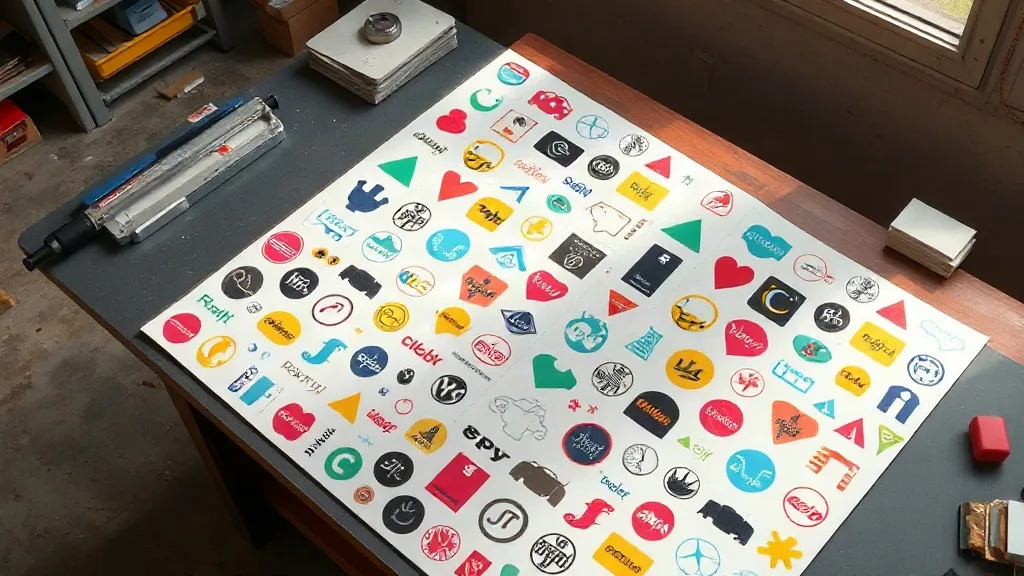
Most shops that try a DTF Gangsheet for the first time make the same mistake: they fill the page top to bottom with whatever art is queued up, hit print, and only later notice a third of the film is wasted on gaps. The transfer itself comes out fine. The economics behind it do not. A gangsheet is not just a bigger print job. It is a layout problem, and the way you arrange art on that film decides your cost per shirt more than almost any other step in the workflow.
This guide walks through how to plan, build, and cut a sheet that earns its keep, with the specific decisions that separate a tidy layout from an expensive one.
What a gangsheet actually is, and why layout matters
A gangsheet is a single large film that holds many individual transfer designs, printed together in one pass, then cut apart. Instead of running ten separate small prints, you run one sheet and slice it into ten usable transfers. The savings show up in setup time, ink handling, and the fixed cost of each print run.
The catch is that the film is a fixed rectangle. Every square inch you leave empty is an inch you paid for and got nothing back from. That is why layout is the real skill here. Two shops with identical printers and identical powder can end up with very different per-transfer costs simply because one fills the sheet efficiently and the other does not.
The three costs you are actually managing
- Film and consumables: the physical area you consume, which is directly tied to how tightly you pack designs.
- Press time: number of passes through the printer and powder station, which drops sharply when you gang more designs together.
- Labor: cutting, weeding, and sorting transfers, which goes up if your layout is hard to read at the trim stage.
Good layout pushes the first two down without inflating the third. That balance is the whole game.
Planning the sheet before you open your design files
The instinct is to start dragging art onto a canvas and see what fits. Resist it for five minutes. A short planning pass saves far more time than it costs.
Group by size, not by order
Sort the designs you plan to print by footprint. Large back prints, standard front prints, and small left-chest logos each behave differently on a sheet. If you mix a 12-inch back print with twenty tiny chest logos, you create awkward pockets of dead space around the big piece. Grouping similar sizes lets you nest them tightly.
Know your printable area precisely
Every printer has a real printable width that is narrower than the film roll, plus a margin the machine will not reliably hit at the edges. Measure yours once and write it down. Laying art to the absolute edge of the roll is a common cause of clipped designs and ruined transfers.
Count your cut lines before you commit
Each design needs a small buffer around it so the cutter has room to work and so the transfer edge is clean. That buffer is not waste, it is insurance. But a 5mm buffer on forty small designs adds up fast. Decide on a consistent buffer that matches your cutter's accuracy and stick to it across the whole sheet.
Building a layout that packs tightly without breaking
Once you know your printable area and your buffer, the layout itself becomes a nesting exercise. A few habits make it much easier.
Rotate before you resize
If a design is slightly too wide to fit a gap, try rotating it before you shrink it. Shrinking changes the finished print size and may not match the customer's approved artwork. Rotating keeps the design intact and often slots it into a space that was unusable a moment ago. Always confirm rotation is acceptable for text-heavy designs, since some logos read poorly sideways.
Fill edges with small items
The last few inches of a sheet are where waste hides. Keep a short list of small, always-in-demand designs (pocket logos, name tags, small badges) that you can drop into leftover corners. These filler items turn dead space into saleable product without any extra print pass.
Keep a consistent orientation for cutting
If your cutter or your staff trims by hand, a sheet where every design faces the same direction is dramatically faster to process. Mixed orientations look efficient on screen but slow down the trim stage, and slow trimming is where mistakes creep in.
Nest similar shapes together
Circles next to circles, rectangles next to rectangles. Odd shapes leave odd gaps, and those gaps are hard to reclaim. When you can, arrange curved designs along the edge of the sheet where their curves can hug the border.
Common layout mistakes and how they show up later
Most gangsheet problems are visible on the screen long before they become visible on a shirt. Here is what to watch for.
- Art touching the trim buffer: the cutter clips the edge and the transfer peels unevenly.
- Ink-heavy designs packed shoulder to shoulder: heavy coverage areas can starve or pool, so give dense designs a little breathing room.
- No spacing between similar colors: it becomes hard to tell where one transfer ends and the next begins during sorting.
- Forgetting to label the sheet: a sheet with forty designs and no file reference is a nightmare to reconcile against orders.
The fix for most of these is a quick visual pass at 100 percent zoom, checking every edge and every gap before you send the file to print.
Cutting and handling the finished sheet
A well-built sheet is also easy to cut. If your layout has clean, consistent spacing, the trim stage becomes mechanical rather than fiddly. Keep the following in mind when you process the printed film.
- Let the sheet cool and cure fully before cutting so the powder layer is stable.
- Cut in a consistent order, top to bottom or by size group, so nothing gets skipped.
- Stack transfers by design, not by position on the sheet, so fulfillment is quick.
- Store cut transfers flat and away from moisture until they are pressed.
Watch the powder stage
Dense layouts with lots of small designs can make powder application uneven if the sheet is handled roughly. Shake off excess powder thoroughly and check that small transfers are not over-powdered, since excess powder on tiny designs leads to a crunchy feel after pressing.
When to run one big sheet versus several smaller ones
Bigger is not automatically better. A single enormous sheet is efficient until one design fails, and then you may lose the whole run. For high-value or time-sensitive orders, splitting into two moderate sheets gives you a safety net. For routine filler designs, one large sheet is almost always the cheaper choice.
A simple rule: if a single design on the sheet is expensive or hard to reprint, separate it. If everything on the sheet is routine stock, pack it as tightly as you can.
Frequently asked questions
How much empty space is acceptable on a DTF gangsheet?
There is no universal number, but most efficient layouts keep unused film area low by filling gaps with small stock designs. If you regularly see large blank patches, your sizing groups are probably mixed and need to be reorganized.
Can I mix different design sizes on the same sheet?
Yes, and sometimes you should, because a large design can be surrounded by small ones that use the leftover corners. The key is to plan the big pieces first, then fill around them rather than dropping them into an already packed sheet.
Does rotating a design on the sheet affect print quality?
Rotation itself does not change print quality, since the printer lays down ink the same way regardless of orientation. What changes is how easy the sheet is to cut and sort, so keep orientation consistent unless rotation solves a real space problem.
How do I avoid clipped edges when cutting transfers?
Build a consistent buffer into every design and keep art away from the printable margin of the roll. Check the layout at full zoom before printing, and trim with a guide rather than freehand.
Is it worth building a reusable template for repeat designs?
For shops that print the same handful of designs regularly, yes. A saved template with fixed positions and buffers removes guesswork and makes every run predictable, which is exactly what a profitable DTF Gangsheet workflow depends on.